Hey there, fellow community members! 
Are you struggling to determine the total number of participants in a group reservation? It can be a breeze for smaller groups, but when dealing with over 100 people, it becomes quite tedious. Well, worry no more! I’m here to share a simple method that will make this task a piece of cake. 
To show the total number of participants in a group reservation, follow these steps: 
 Select all the bookings associated with the group reservation.
Once you’ve gathered all the relevant bookings, navigate to the Summary tab. This tab provides an overview of the reservation details.
Look for the information related to the total number of reservations or participants on the top of the right side of screen, under Reservations
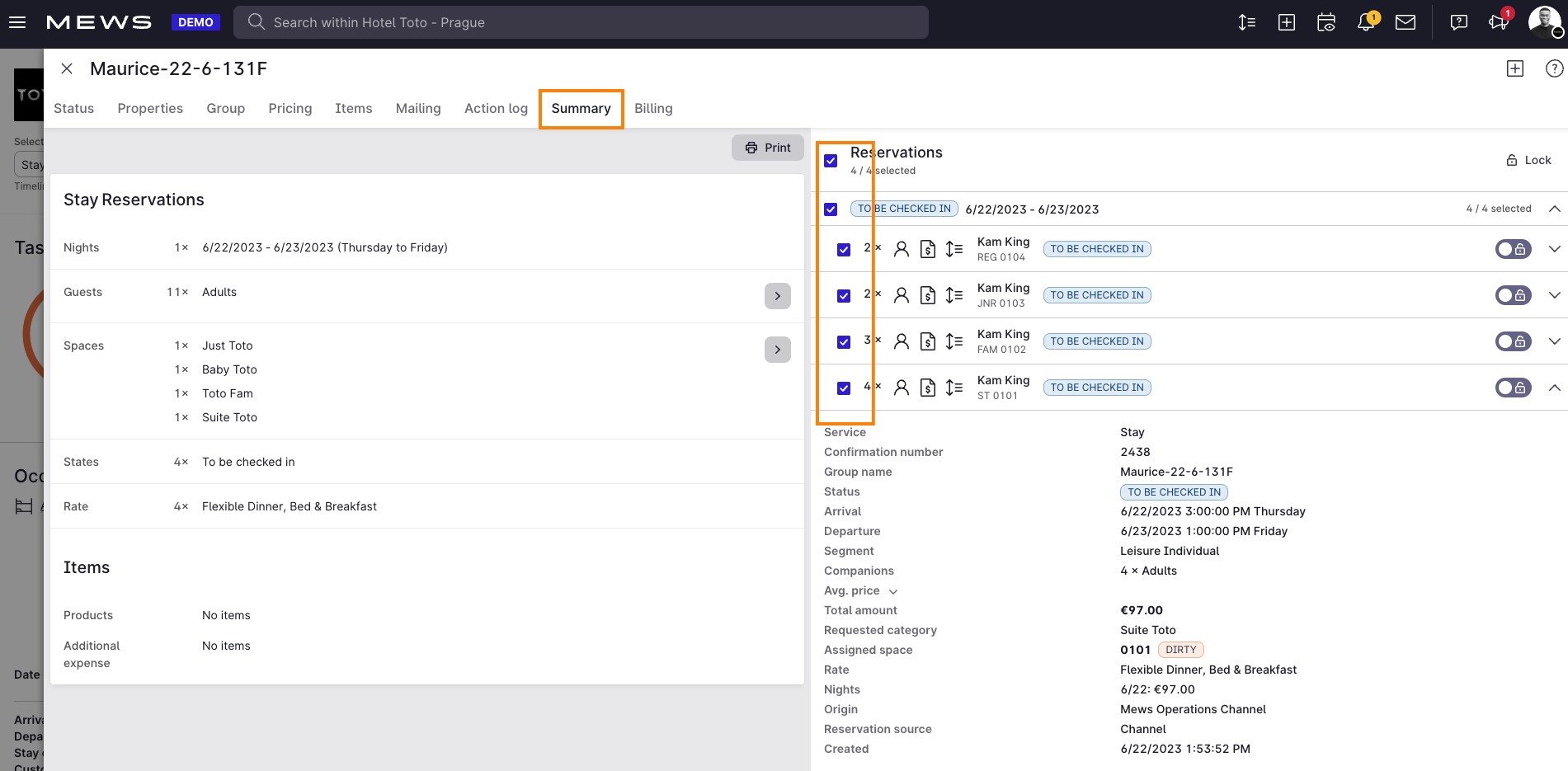
Voilà! You should now see the total number of reservations associated with the group booking.
By following these steps, you’ll save yourself a considerable amount of time and effort, especially when dealing with larger groups. 
Remember, the key is to gather all the relevant bookings for the group reservation and locate the Summary tab, where you can find the desired information. 
If you have any further questions or need additional assistance, don’t hesitate to ask our friendly community. We’re here to help each other out! 
Happy organizing and may your group reservations be a breeze! 