Hello community!
We are currently struggling a bit adapting to MEWS coming from the old HS3. Our staff is a bit old-fashioned when it comes to lists like the breakfast list. We used to print it out in our old system the night before for the staff to look at it in the morning. Now we basically need a digitalized version; all the printable versions don’t work as intended, in my opinion. An example is filtering the reservation report, but these filters will never show up in the actual printable PDF, which seems like a bug?
So we tried out having the product checklist open on an iPad for our ladies to check in the morning. For some reason, though, it lacks the ability to show the group as well. It only shows the guest and, at least for us, a redundant item “owner.” We would like to see the actual group there as well so we know which tables will be sitting together. It is possible to individually click on each guest to show in which group he/she belongs , but this is tedious for any larger amount of guests and visually exhausting. Could we please have a simple “group” row option for the product checklist? Thank you
Good morning!
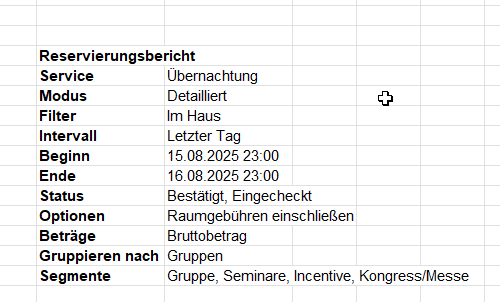
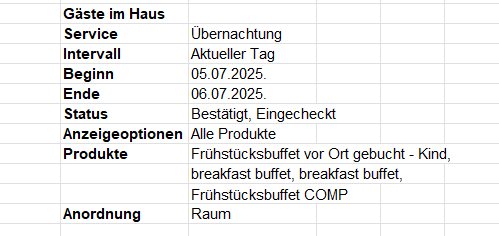
We use the checklist for individual guests and for larger groups we pull a reservation report with the following filters. Maybe this will help you!
(This would also make it possible to pull a paper list)
Note: both are exported to Excel and then adjusted accordingly. Of course, your products, etc., must be selected.
If you have any questions, please contact us!
|
|
|
Thanks for the quick reply.
While it’s possible, it’s very cumbersome. A breakfast list with groupings should really be a basic feature. In the old system, printing required just a single button press; now we have to export various lists to Excel and then edit them manually… no, that won’t work—especially since our manager is a bit older and can’t be fiddling with Excel in the evenings after long days.
The reservation report itself—with well-configured filters—would actually be usable (I could save the filters as a custom link in Mews), BUT these filters are not carried over to the print version. This is unfortunately a clear bug.
Here as an example, how the list would look when printed. It includes all sorts of information such as credit card details that are not selected as filters and are not shown in the browser. However, as soon as you print to PDF, all filters reappear.
Either this needs to be fixed, or at least it should be possible to group by “Group” within the Product Checklist as a filter.
English:
Thanks for the quick reply.
While it is possible to do it this way, it’s very cumbersome. A breakfast list with grouping options really ought to be a standard feature. In the old system, printing took just a single input; now we’re expected to export various lists to Excel and then edit them manually… that just won’t work—especially since our manager is a bit older and shouldn’t have to fumble with Excel in the evening every day.
The reservation report itself—if the filters were set up correctly - would actually be usable (I could even save the filters as a custom link in Mews), BUT those filters aren’t carried over to the print version unfortunately. That is clearly unintended.
Above is a screenshot example of how the list prints out. It includes all sorts of information—like credit card details—that weren’t selected in the filters and aren’t visible in the browser view. However, as soon as you select “Print to PDF,” all the filters reappear.
Either this needs to be fixed, or at least it should be possible to group by “Group” within the Product Checklist filter options.
@SonnenscheinHotel, unfortunately there isn’t a single best solution—only different routes to Rome.
With us, the night shift prepares this and hands it over to the breakfast staff if needed.
Hi @SonnenscheinHotel, thanks Johannes for sharing how your teams handle the breakfast list. 
Moving from a printed list the night before to a digital one is a real change for staff who are used to paper.
You mentioned that the filters you set on the reservation report do not appear in the printable PDF. We would like to look at that properly. Could you please create a ticket with Mews Support if you haven’t already - I realise this reply is slow so you may have already contacted Support? It helps if you include the filters you used and a screenshot of the report and the PDF. That way the team can check what is happening for your property.
Thanks also for the suggestion of a group row in the product checklist. I can’t confirm anything about that today, but I have noted it as feedback.
If your night shift prepares the list and hands it over, one option is to create a task in Mews Operations. You can assign it to the breakfast department and add images or links in the description. Your breakfast staff then see it on the Dashboard on desktop or in the Tasks tab on mobile.
You can read how in Creating and managing tasks: Knowledge Base